
Element Pick and Place with Dynamics
The Dynamics in the caption refers to the dynamic movement of the text label once you've selected a linear element.
The Element Pick and Place with Dynamics tool is a tool that inherits from the MicroStation Python DgnElementSetTool. When you pick a linear element it lets you place a label. The label is a DGN text element create in methods …
- In
_OnDynamicFramethe label is created and displayed each time you move the mouse _OnDatapointthe label is created once and added to the active DGN model- Once complete, the tool restarts
The label displays the length of the line you picked.
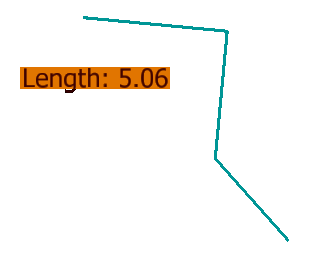
The label is an independent DGN text element. It isn't associated with the line you pick: if you move the line, the text is not affected. You can move the text independently of the line.
ElementPickAndPlace Class
Member variables …
-
m_pointsis a short list (only 2 members) of points captured as the script executes -
m_lengthis the length of the line you pick, measures in units-of-resolution (UORs) -
m_isDynamicsis a flag that is initiallyFalseuntil you pick a line element, when it is set toTrue
class ElementPickAndPlace(DgnElementSetTool):
    def __init__(self, toolId: int):
        """
        Initialize the ElementModifier.

        param toolId: The ID of the tool.
        """
        DgnElementSetTool.__init__(self, toolId) # C++ base's __init__ must be called.
        self.m_isDynamics = False
        self.m_ev = None
        self.m_self = self # Keep self-referenced. This variable is used by the base class DgnElementSetTool.
        self.m_points = DPoint3dArray()
        self.m_length = 0.0
Member functions new to this example …
-
_OnDataButtoncalled when you press the mouse data button -
_OnDynamicFramecalled while you move the mouse after_BeginDynamics()is called
Method _OnPostLocate
First we must verify that the chosen element is suitable for modification.
It should be a linear DGN element such as a line or line-string.
The right place to perform that check is in method _OnPostLocate …
This method is similar to previous examples: nothing new to see.
Method _OnDataButton
Python programmers usually work with units-of-resolution (as with MDL and the C++ MicroStationAPI). Use the UORs obtained from the active model to scale the measured length of the line to master units before creating the label.
def _OnDataButton(self, ev: DgnButtonEvent)->bool:
    """
    Handle the data button event.

    This method processes the data button event, updates the tool settings, and creates
    a line element in the active model.

    :return: True if the event was handled successfully, False otherwise.
    """
    self._BeginDynamics() # Start dynamics after first point. Enables AccuDraw and triggers _OnDynamicFrame being called.

    self.m_points.append(ev.GetPoint()) # Save current data point location.
    self.setup_prompt_next_action()

    if len(self.m_points) < 2:
        return False

    annotator = CreateTextElement(ISessionMgr.ActiveDgnModelRef)
    uors = get_uors_per_master(ISessionMgr.ActiveDgnModelRef)
    status, eeh = annotator.create_label(self.m_points[-1], self.m_length / uors)
    if TextBlockToElementResult.eTEXTBLOCK_TO_ELEMENT_RESULT_Success == status:
        eeh.AddToModel() # Add new line element to active model.
        self._OnRestartTool()

    return self._CheckSingleShot() # Tool should exit after creating a single element if started in single-shot mode.
Method _OnDynamicFrame
def _OnDynamicFrame(self, ev: DgnButtonEvent)->None:
    """
    Handle the dynamic frame event.

    This method reates a temporary text element,
    and redraws it dynamically in the active view.

    """
    annotator = CreateTextElement(ISessionMgr.ActiveDgnModelRef)
    uors = get_uors_per_master(ISessionMgr.ActiveDgnModelRef)
    status, eeh = annotator.create_label(ev.GetPoint(), self.m_length / uors)

    redrawer = RedrawElems()
    redrawer.SetDynamicsViews(IViewManager.GetActiveViewSet(), ev.GetViewport()) # Display in all views, draws to cursor view first...
    redrawer.SetDrawMode(eDRAW_MODE_TempDraw)
    redrawer.SetDrawPurpose(DrawPurpose.eDynamics)
    redrawer.DoRedraw(eeh)
Method _OnElementModify
Unlike the simpler element picker examples, _OnElementModify doesn't have a lot to do in this app.
def _OnElementModify(self, eeh: EditElementHandle)->BentleyStatus:
    """
    Using the given element, create some text annotation.

    :param eeh: The element that supplies information.
    :returns: The status of the modification.
    """
    # NOTE: Since we've already validated the element in OnPostLocate and don't support groups/selection sets we don't have to check it again here.

    locate_point = DPoint3d()
    self._GetAnchorPoint(locate_point)
Class CreateTextElement
Class CreateTextElement is
described elsewhere.
In this pick-and-place example it remains unchanged.
LA Solutions Examples
You'll find Python examples written by LA Solutions on these pages, starting here.
Visit the LA Solutions' State Machine examples download page.
Questions
Post questions about MicroStation programming to the MicroStation Programming Forum.
