
Simple Element Pick and Place
The Element Pick and Place tool is a simple tool that inherits from the MicroStation Python
DgnElementSetTool.
When you pick an element it creates a text element in method
_OnElementModify.
The label displays the length of the line you picked.
ElementPickAndPlace Class
class ElementPickAndPlace(DgnElementSetTool):
    def __init__(self, toolId: int):
        """
        Initialize the ElementModifier.

        param toolId: The ID of the tool.
        """
        DgnElementSetTool.__init__(self, toolId) # C++ base's __init__ must be called.
        self.m_isDynamics = False
        self.m_ev = None
        self.m_self = self # Keep self-referenced. This variable is used by the base class DgnElementSetTool.
Method _OnPostLocate
First we must verify that the chosen element is suitable for modification.
It should be a linear DGN element such as a line or line-string.
The right place to perform that check is in method _OnPostLocate …
def _OnPostLocate(self, path: HitPath, cant_accept_reason: str)->bool:
	"""
	Handle post-locate event to determine if the element can be accepted for modification.

	:param path: The path of the located element.
	:param cant_accept_reason: The reason why the element cannot be accepted.
	:returns: True if the element can be accepted, False otherwise.
	"""
	if not DgnElementSetTool._OnPostLocate(self, path, cant_accept_reason):
		return False

	eh = ElementHandle(path.GetHeadElem(), path.GetRoot())
	curve = ICurvePathQuery.ElementToCurveVector(eh)

	# Accept elements that are open paths with one or more linear segments (ex. line or linestring).
	if curve==None or (not curve.IsOpenPath()):
		return False

	primitive_type = curve.HasSingleCurvePrimitive()
	if primitive_type == ICurvePrimitive.eCURVE_PRIMITIVE_TYPE_Line or primitive_type == ICurvePrimitive.eCURVE_PRIMITIVE_TYPE_LineString:
		return True

	return False
Method _OnElementModify
The purpose of Element Picker is simple: when you pick a linear element the code formats a string using the length of the line. Then it creates a new DGN text element and places it in the active model …
    def _OnElementModify(self, eeh: EditElementHandle)->BentleyStatus:
        """
        Using the given element, create some text annotation.

        :param eeh: The element that supplies information.
        :returns: The status of the modification.
        """
        # NOTE: Since we've already validated the element in OnPostLocate and don't support groups/selection sets we don't have to check it again here.
        curve = ICurvePathQuery.ElementToCurveVector(eeh)
        length = curve.FastLength()

        locate_point = DPoint3d()
        self._GetAnchorPoint(locate_point)

        annotator = CreateTextElement(eeh.GetModelRef())
        uors = get_uors_per_master(eeh.GetModelRef())
        annotator.place_label(locate_point, length / uors)
Class CreateTextElement
Class CreateTextElement gets the active text style (DgnTextStyle) from the DGN file.
It creates an empty TextBlock using that style.
Method place_label formats a string with the passed length and appends it to the TextBlock.
Finally, TextHandlerBase.CreateElement() creates a text element which is added to the DGN model.
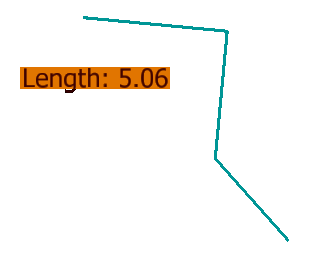
Python programmers usually work with units-of-resolution (as with MDL and the C++ MicroStationAPI). Use the UORs obtained from the active model to scale the measured length of the line to master units before creating the label.
class CreateTextElement():
    def __init__(self, dgn_model_ref: DgnModelRef)->bool:
        self._dgn_model_ref = dgn_model_ref
        self._text_style = DgnTextStyle.GetSettings(dgn_model_ref.GetDgnFile())
        self._text_block = self.create_text_block(self._text_style, self._dgn_model_ref)

    def create_text_block (self, text_style: DgnTextStyle, dgn_model_ref: DgnModelRef)->TextBlock:
        '''
        Create a TextBlock using the specified TextStyle.
        '''
        text_block = TextBlock(text_style, dgn_model_ref.GetDgnModel())
        start_caret = text_block.CreateStartCaret()
        end_caret = text_block.CreateEndCaret()
        return text_block

    def place_label(self, origin: DPoint3d, length: float)->None:
        '''
        Append some text to a TextBlock and create a new text element placed at the given origin.
        '''
        self._text_block.AppendText(f"Length: {length:.2f}") # Format specifier :.2f for two decimal places
        self._text_block.SetUserOrigin(origin)
        eeh = EditElementHandle()
        status = TextHandlerBase.CreateElement(eeh, None, self._text_block)
        print(f"TextHandlerBase.CreateElement status {status}")
        result = eeh.AddToModel()
        msg = str()
        if eTEXTBLOCK_TO_ELEMENT_RESULT_Success == result:
            msg = "Text block successfully added."
            MessageCenter.ShowInfoMessage(msg, msg, False)
        else:
            msg = "Text block not added."
            MessageCenter.ShowErrorMessage(msg, msg, False)
        print(msg)
LA Solutions Examples
You'll find Python examples written by LA Solutions on these pages, starting here.
Visit the LA Solutions' State Machine examples Download page.
Questions
Post questions about MicroStation programming to the MicroStation Programming Forum.
