
Smart Solid Labeller
The solid labeller described here demonstrates how to pick a solid element,
then compose a
TextBlock
that includes a
TextField
to display a DGN element property.
The
TextField
in this example displays the solid's volume …
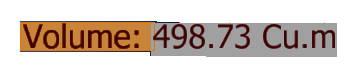
You can display several properties by creating a TextField for each,
then appending that TextField to the TextBlock.
For example, you might want to show both the solid's volume and its surface area.
TextField Background
By default, MicroStation doesn't apply the text style background of the text element to the text field. You can modify that behaviour by applying the appropriate MicroStation user preference. Read more about Use Text Style Background Color for Field Background.
Association
The label is a DGN text or text node element. It is stand-alone text that is associated with the picked solid. If you move the solid, the text moves automatically. If you edit the solid and change its size, the text label updates automatically to reflect the new volume.
That association is set up by the TextAssociationHandler.
Dependency
The TextField has a dependency on the host solid element.
That is, the TextField is dependent on that solid.
That's how the label knows to update if the host element is changed.
Use the ANALYZE ELEMENT tool to see those dependency data on the label text node.
Introduction to the MicroStation TextField Class
A MicroStation user can create a TextField using the text editor.
Here's an
overview of the TextField
object.
It provides detailed information that will help you to program a TextField using one of the supported languages:
Python, C++ and C#. VBA does not support TextFields.
TextField Documentation
| Source | Link |
|---|---|
| MicroStation Help | Fields - Derived Content in Text |
| MicroStation Python API Help | TextField class |
The class connects to a DGN element, model or file …
EC Classes
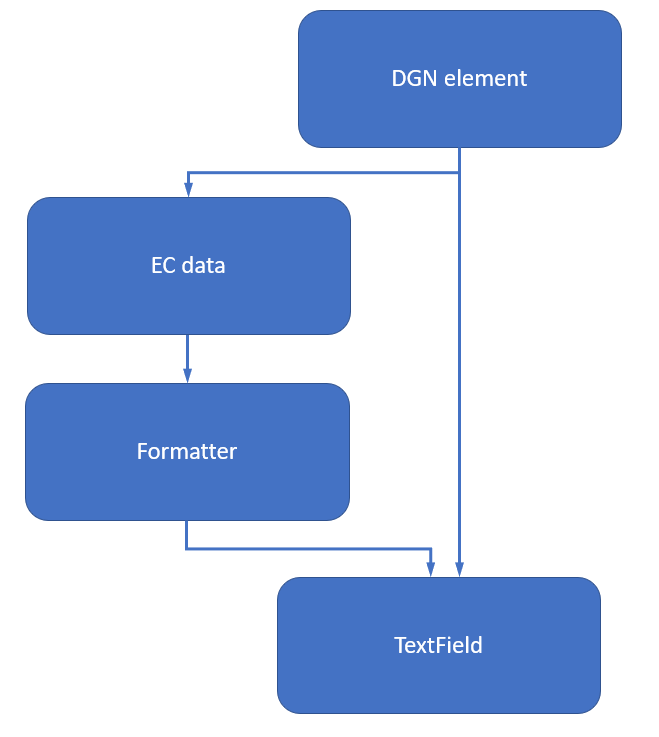
EC data are linked to a DGN object by that object's Element ID. An Element ID is a 64-bit integer. It is unique within the context of a DGN file. MicroStation provides formatter classes that link to an element using the same method. A formatter understands the context of a DGN element: whether it's 2D or 3D; whether it's open or closed (i.e. a line vs. a shape vs. a volumetric object); how it should be measured.
Using the TextField Class
We need code that makes an EC formatter from the EC data belonging to an element.
We'll assign that formatter to the TextField.
The TextField that we create needs to know about its target DGN element.
The smart label solid picker is implemented in cmdPickSolidElement, a solid picker class that inherits from
DgnElementSetTool.
There are several examples that show how to use DgnElementSetTool and I won't discuss it further here.
class cmdPickSolidElement(DgnElementSetTool):
    '''
    Inherits from DgnElementSetTool.  Prompts user to pick a solid element.
    '''
What I will discuss is how to connect the picked element with its corresponding TextField.
That's implemented by a LabelHandler class.
_LabelHandler Class
The _LabelHandler class is common to several examples and is
described here.
SolidLabelHandler.CreateVolumeTextField
For a volume text field we need the class name and property name for the formatter.
The element picker accepts several DGN element types, which we use like this with class VolumeLabelHandler.
from EC.EC_Helpers.label_handler import (VolumeLabelHandler, )
Method CreateVolumeTextField is implemented in the _LabelHandler class file label_handler.py …
  def CreateVolumeTextField(self)->TextField:
    '''
    Use this for a solid version of Annotator.
    We supply the class and property name …

    '''
    _EC_CLASS = "MstnVolume"
    _EC_PROP = "Volume"
    #  Call the base class method CreateTextField()
    return self.CreateTextField (_EC_CLASS, _EC_PROP)
  def CreateSurfaceAreaTextField(self)->TextField:
    '''
    Use this for a solid version of Annotator.
    We supply the class and property name …

    '''
    _EC_CLASS = "MstnVolume"
    _EC_PROP = "SurfaceArea"

    #  Call the base class method CreateTextField()
    return self.CreateTextField (_EC_CLASS, _EC_PROP)
SolidLabelHandler.CreateLabel
The CreateLabel method assembles a label represented by a TextBlock.
The label may have a prefix, followed by the volume measured by a TextField.
It calls SolidLabelHandler.SetVolumeProperties() to set formatting properties,
such as the precision (number of decimal digits) and units (e.g. Master Units, metres, etc).
Next it calls SolidLabelHandler.CreateVolumeTextField() to create the
TextField which it appends to the TextBlock.
The method returns the TextBlock, ready to be added to the DGN model.
def CreateLabel(self, origin: DPoint3d)->[bool, EditElementHandle]:
    '''
    Compose a TextBlock and convert to a text element at the given origin.
    The TextBlock will contain at least a TextField that displays the
    appropriate measurement (e.g. Volume or Surface Area).
    The TextBlock may additionally contain a prefix, suffix and units depending on the chosen
    options.
    The constructor already initialised these class members...
        self._text_block
    '''
    self._text_block.SetUserOrigin(origin)
    status = self.SetVolumeProperties()
    if status:
        text_field = self.CreateVolumeTextField()
        assert text_field is not None, "CreateLabel: unable to create volume TextField"
        self._text_block.AppendField (text_field)
        label = EditElementHandle()
        status = TextHandlerBase.CreateElement(label, None, self._text_block)
        print(f"TextHandlerBase.CreateElement status {status}")
        return status, label
    return False, None
Examples
The examples page lists example projects written by LA Solutions.
Questions
Post questions about MicroStation Python programming to the MicroStation Programming Forum.
