
Smart Line Labeller
The line labeller described here demonstrates how to pick a line element,
then compose a
TextBlock
that includes a
TextField
to display a DGN element property.
The
TextField
in this example displays the line's length …
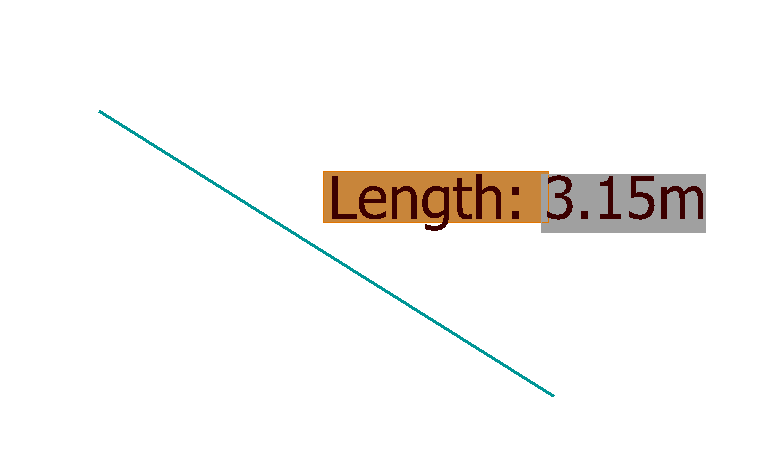
You can display several properties by creating a TextField for each,
then appending that TextField to the TextBlock.
TextField Background
By default, MicroStation doesn't apply the text style background of the text element to the text field. You can modify that behaviour by applying the appropriate MicroStation user preference. Read more about Use Text Style Background Color for Field Background.
Association
The label is a DGN text node element. It is stand-alone text that is associated with the picked line. If you move the line, the text moves automatically. If you edit the line and change its length, the text label updates automatically to reflect the new length.
That association is set up by the TextAssociationHandler.
Dependency
The TextField has a dependency on the host line element.
That is, the TextField is dependent on that line.
That's how the label knows to update if the host element is changed.
Use the ANALYZE ELEMENT tool to see those dependency data on the label text node.
Introduction to the MicroStation TextField Class
A MicroStation user can create a TextField using the text editor.
Here's an
overview of the TextField
object.
It provides detailed information that will help you to program a TextField using one of the supported languages:
Python, C++ and C#. VBA does not support TextFields.
TextField Documentation
| Source | Link |
|---|---|
| MicroStation Help | Fields - Derived Content in Text |
| MicroStation Python API Help | TextField class |
The class connects to a DGN element, model or file …
EC Classes
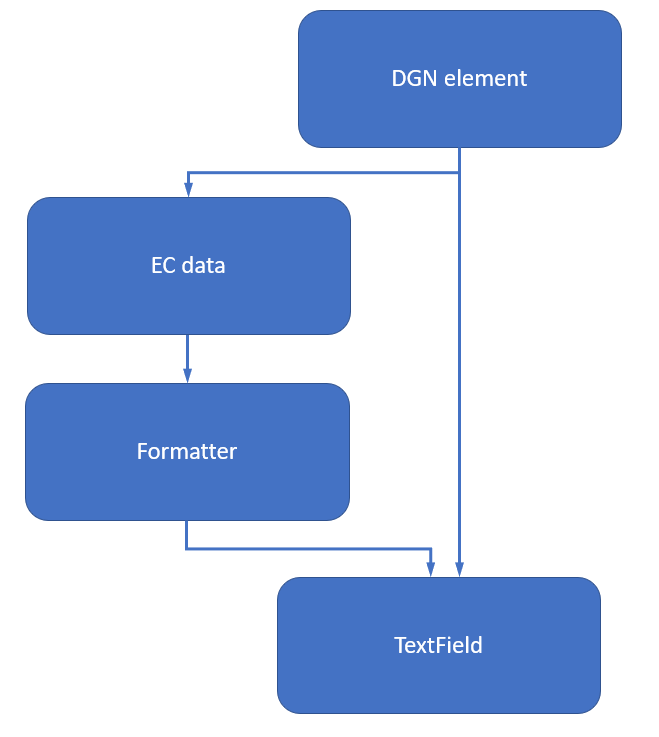
EC data are linked to a DGN object by that object's Element ID. An Element ID is a 64-bit integer. It is unique within the context of a DGN file. MicroStation provides formatter classes that link to an element using the same method. A formatter understands the context of a DGN element: whether it's 2D or 3D; whether it's open or closed (i.e. a line vs. a shape); how it should be measured.
Using the TextField Class
We need code that makes an EC formatter from the EC data belonging to an element.
We'll assign that formatter to the TextField.
The TextField that we create needs to know about its target DGN element.
The smart label line picker is implemented in cmdPickLineElement, a line picker class that inherits from
DgnElementSetTool.
There are several examples that show how to use DgnElementSetTool and I won't discuss it further here.
class cmdPickLineElement(DgnElementSetTool):
    '''
    Inherits from DgnElementSetTool.  Prompts user to pick a line element.
    'line element' means anything that converts to an open CurveVector.
    '''
What I will discuss is how to connect the picked element with its corresponding TextField.
That's implemented by a LabelHandler class.
_LabelHandler Class
The _LabelHandler class is common to several examples and is
described here.
CreateDistanceTextField
For a distance text field we need to compute the class name and property name for the formatter.
The element picker accepts several DGN element types, which we use like this with class CreateDistanceTextField.
from EC.EC_Helpers.label_handler import (DistanceLabelHandler, )
CreateDistanceTextField is implemented in the _LabelHandler class file label_handler.py …
  def CreateDistanceTextField(self)->TextField:
    '''
    Use this for a linear version of Annotator.
    We calculate the class and property name according to the DGN element type.
    For line and line-string elements, the class & property "MstnLineSegments", "TotalLength" work OK.
    For a complex string, use "MstnComplex", "TotalLength".
    For a B-Spline element, "MstnBSplineCurve" and "Length"
    For an arc element, "MstnArc" and "Length"
    '''
    match (self._host_element.GetElementType ()):
      case MSElementTypes.eLINE_ELM | MSElementTypes.eLINE_STRING_ELM:
        ec_class = "MstnLineSegments"
        ec_prop  = "TotalLength"
      case MSElementTypes.eCMPLX_STRING_ELM:
        ec_class = "MstnComplex"
        ec_prop  = "TotalLength"
      case MSElementTypes.eBSPLINE_CURVE_ELM:
        ec_class = "MstnBSplineCurve"
        ec_prop  = "Length"
      case MSElementTypes.eARC_ELM:
        ec_class = "MstnArc"
        ec_prop  = "Length"
      case _:
        warn = f"DistanceLabelHandler.CreateDistanceTextField: attempt to use unsupported element type {eh.GetElementType ()}"
        print (warn)
        return None
    #  Call the base class method CreateTextField()
    return self.CreateTextField (ec_class, ec_prop)
Examples
The examples page lists example projects written by LA Solutions.
Questions
Post questions about MicroStation Python programming to the MicroStation Programming Forum.
